
1. Select a Deal Template
In the TreasuryView Workspace, navigate to the Deals section. Select a loan or derivative transaction template from the available instrument types.
> Why templates? TreasuryView's pre-filled templates are pre-configured with the specific data structure and field validation required for each instrument type. Selecting the correct template ensures that all mandatory fields, payment conventions, and interest calculation logic are set up correctly from the outset — reducing entry errors and eliminating the need for post-entry corrections.
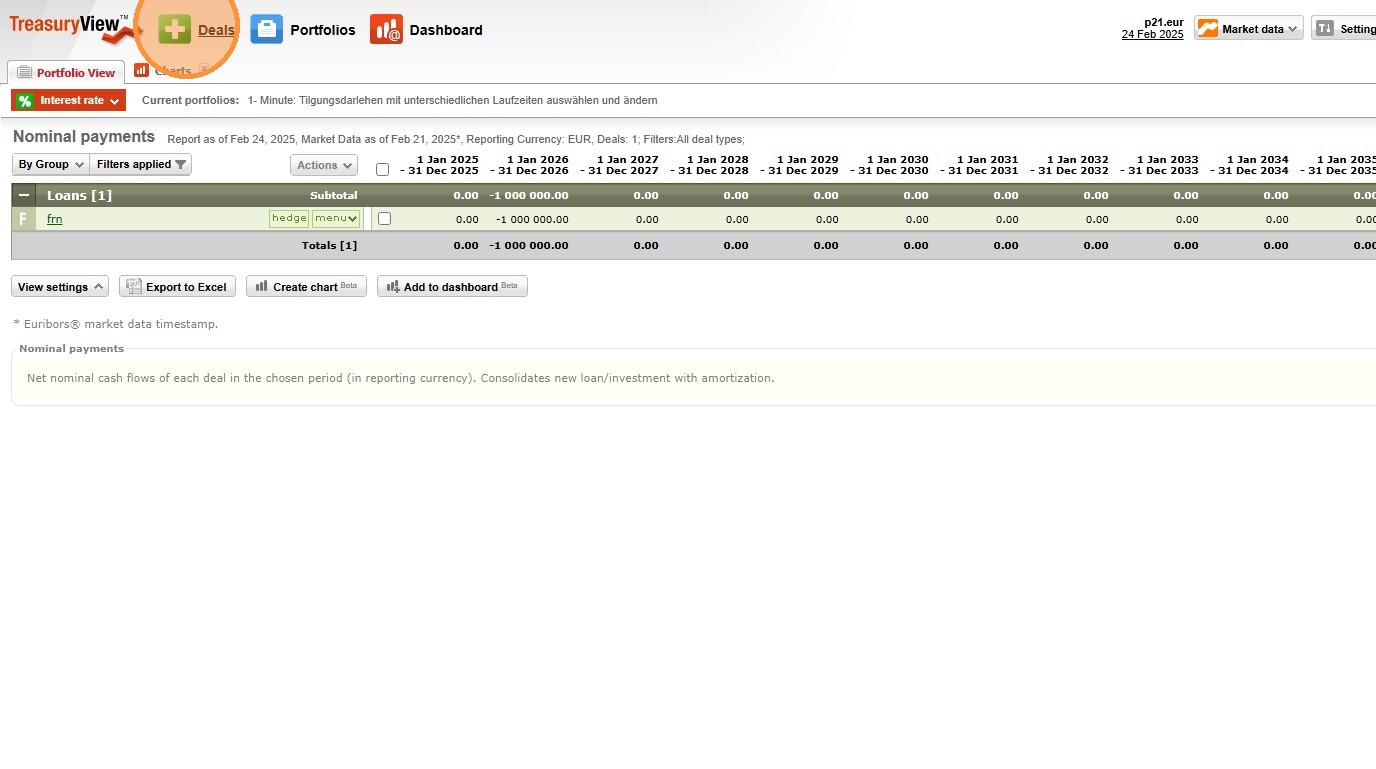
2. Open the Target Instrument Template
Click on the relevant instrument — for example, "Floating Rate Loan" — to open the pre-filled deal entry interface.
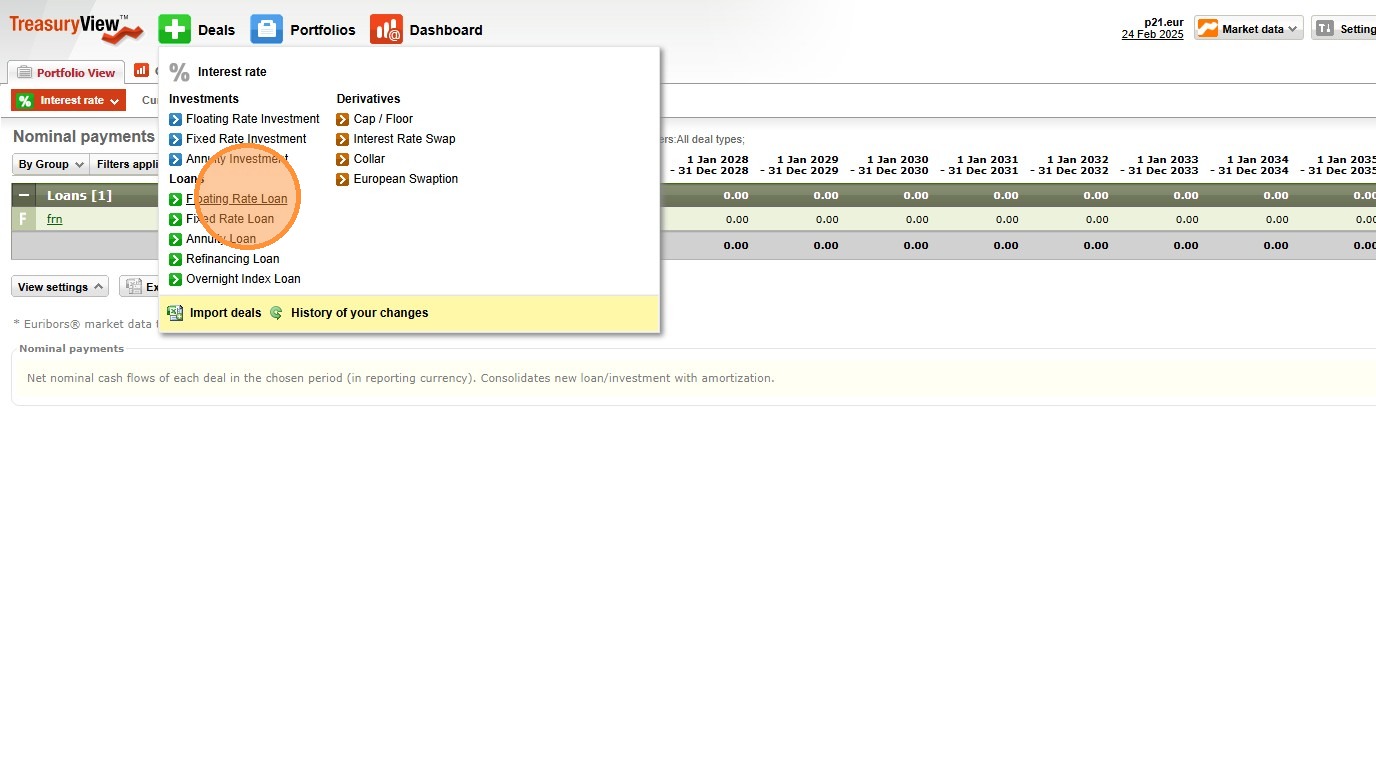
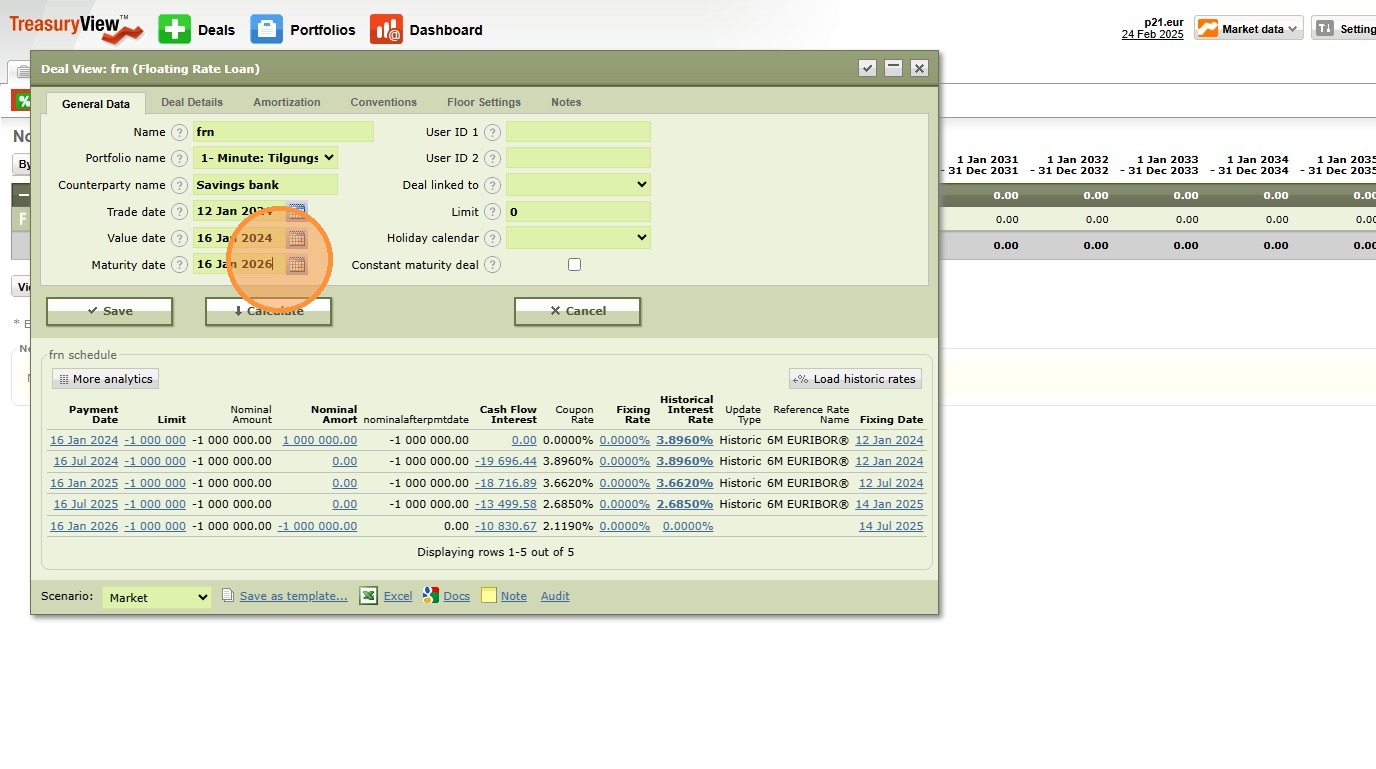
3.Configure Deal Parameters
Adjust the deal parameters to match your transaction details. Enter the Nominal, Value Date, Maturity Date, Margin, Payment Frequency, and Counterparty as applicable to your specific financing agreement.
> System logic: The UI template uses built-in data validation and drop-down menus to restrict entries to valid values — for example, enforcing correct day count conventions, payment frequency options, and reference rate selections. This ensures your data is audit-ready before it is committed to the Debt Portfolio.
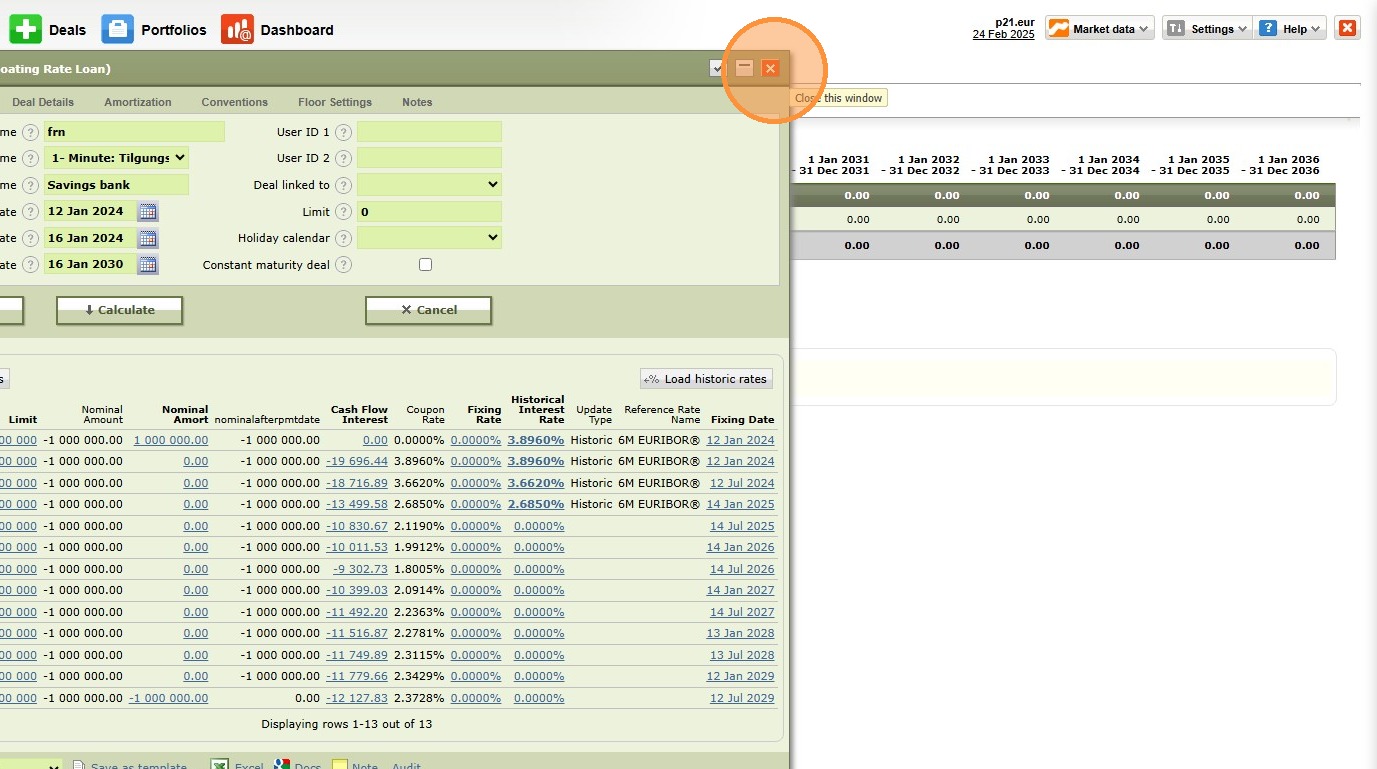
4.Calculate Cash Flows
Click "Calculate" to trigger TreasuryView's valuation engine.
> Why this step matters: Clicking Calculate instantly generates the full interest and Principal repayment schedule based on your entered parameters — including projected floating-rate Cash Flows using current market curves. Review the output before saving to confirm that payment dates, Nominal amortisation, and interest amounts are consistent with your loan agreement terms.
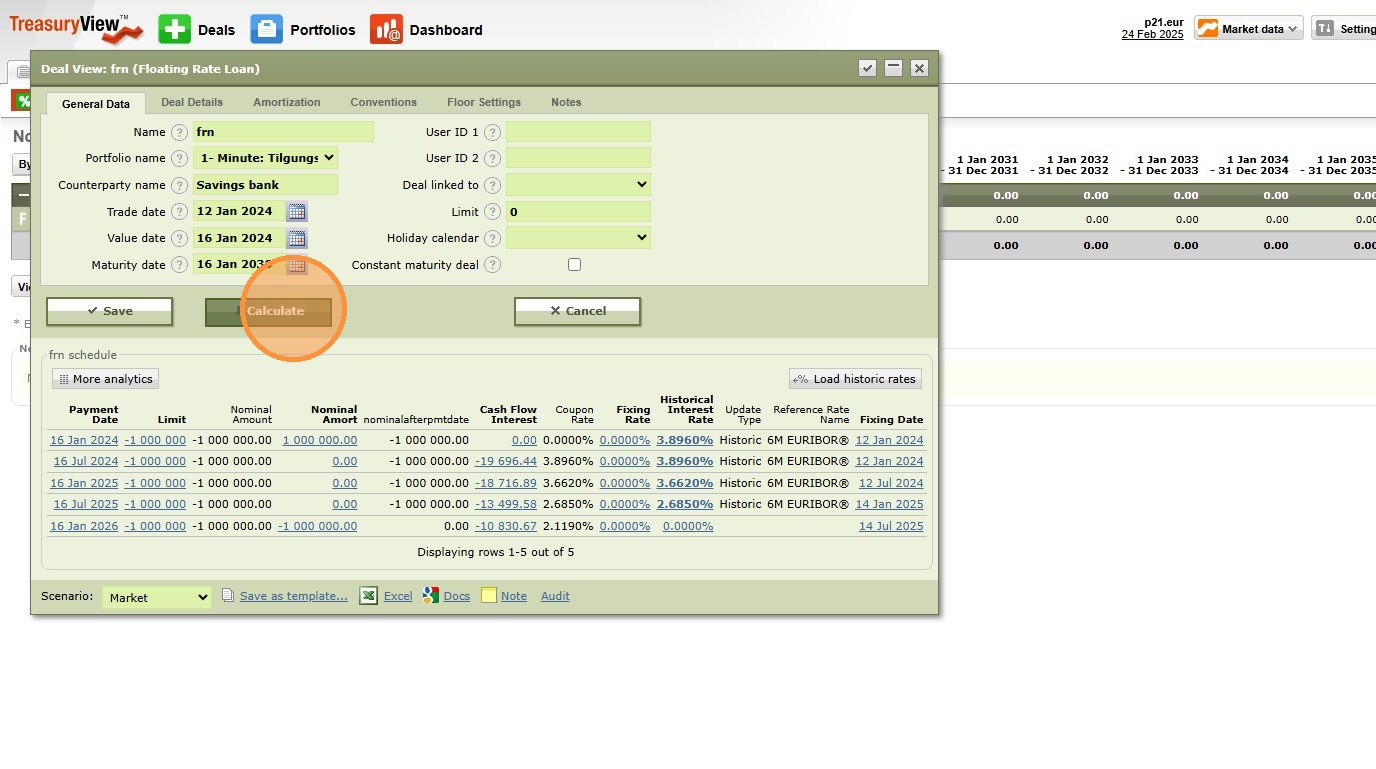
5.Review Automated Cash Flow Calculations
Inspect the automated deal Cash Flow schedule generated by TreasuryView. Verify that the projected interest payments, Principal instalments, and Maturity Date repayment align with the underlying loan or derivative agreement.
6. Import your data via spreadsheet import template
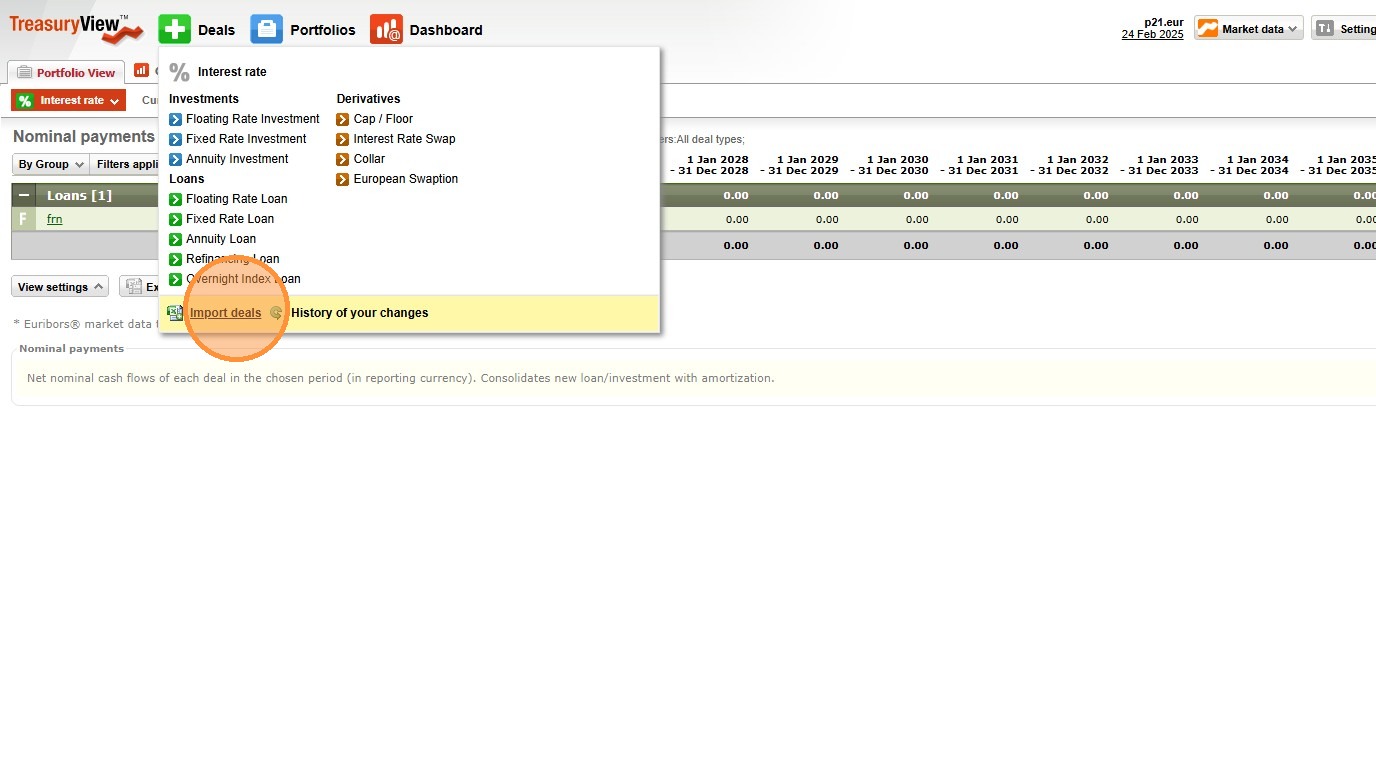
7.Download the Spreadsheet Import Template
For bulk deal entry, navigate to "Import deals" and download the latest Excel template directly from the TreasuryView platform.
> Why use the system template? The TreasuryView import template is pre-configured with the exact data structure, column mapping, and validation rules required for a seamless upload. Using any other spreadsheet format will cause import errors. Always download the latest version from within the platform to ensure compatibility with the current data model.
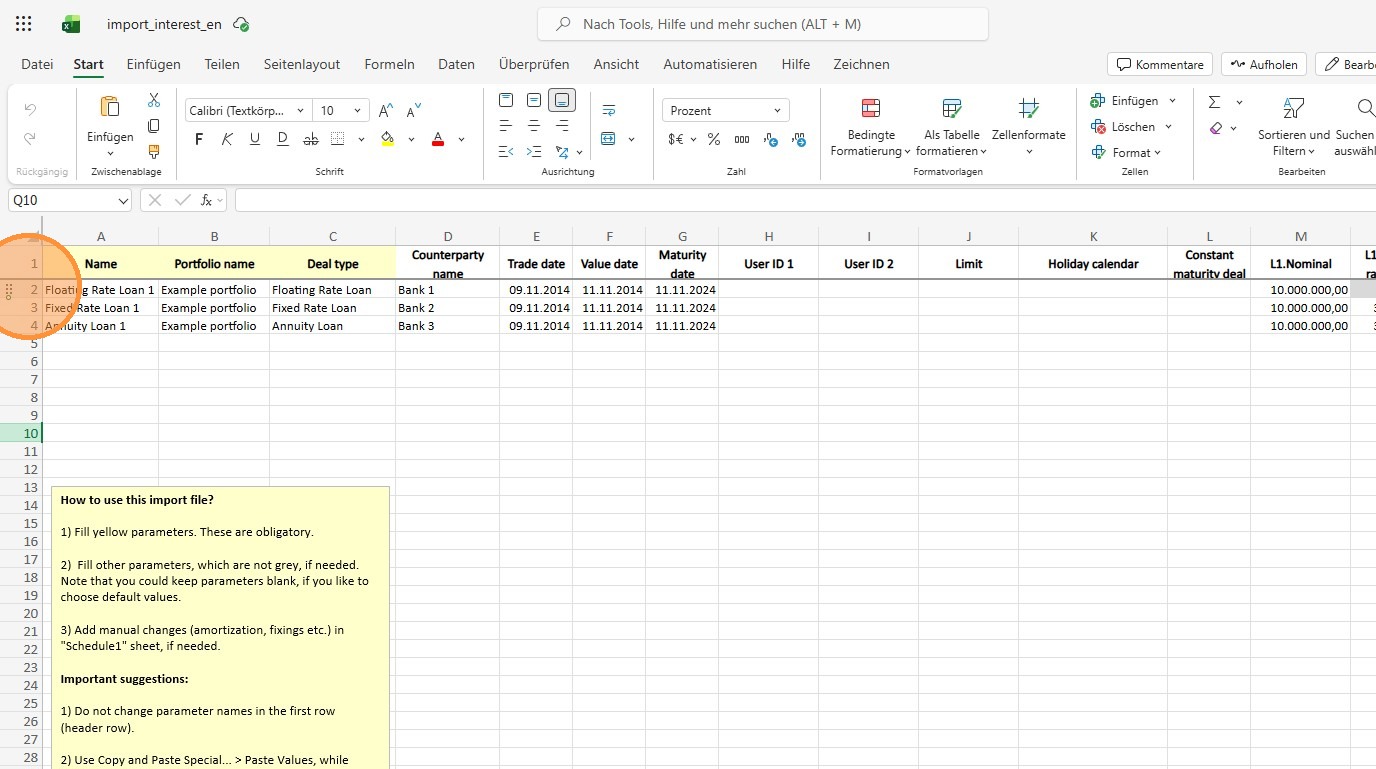
8.Map and Paste Your Loan Data into the Template
Open the downloaded Excel template and map your existing loan or derivative transaction data into the corresponding columns. Copy and paste your data from your source files into the template worksheet.
> System logic: The template worksheet is structured to mirror TreasuryView's internal data model — each column corresponds directly to a deal parameter field in the platform. Populating the template in the correct column order ensures that Nominal amounts, Value Dates, Counterparty names, and interest parameters are imported into the correct fields without manual remapping.
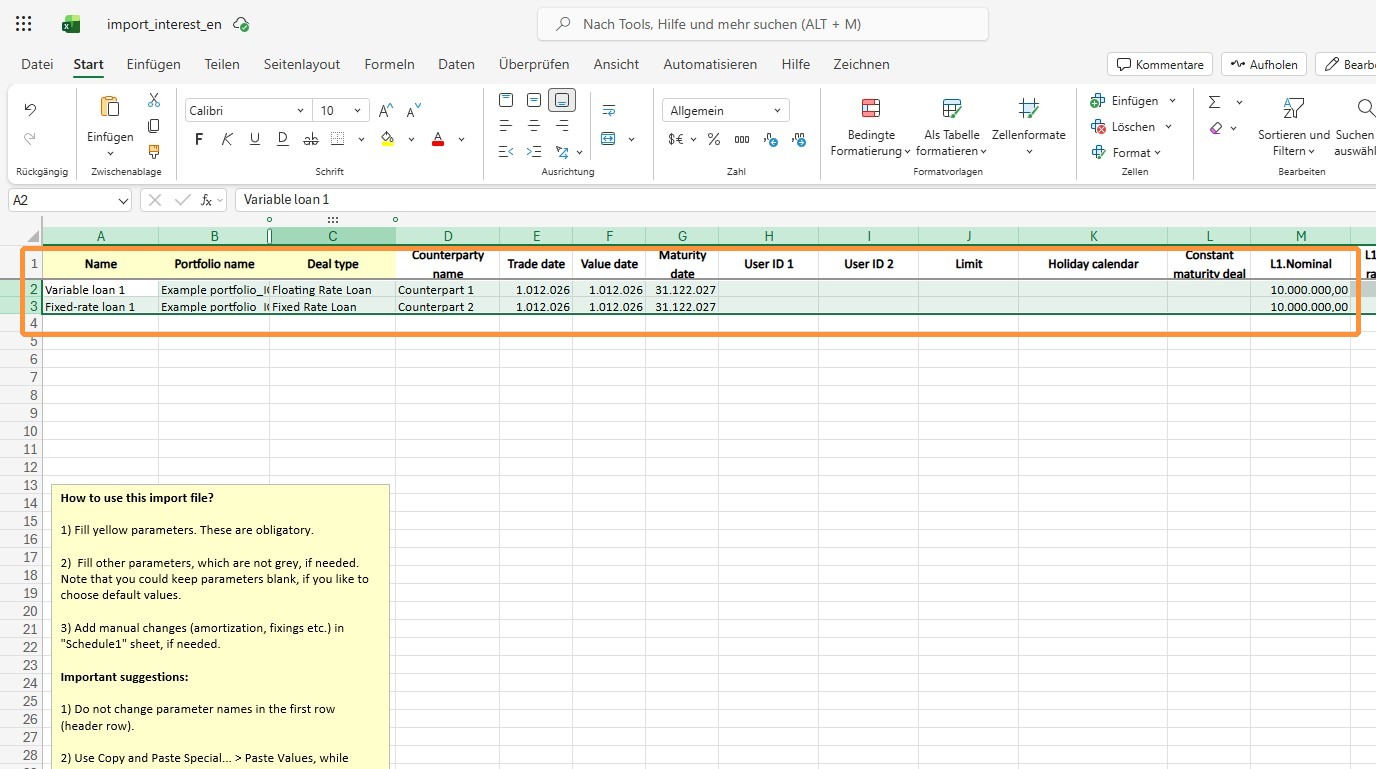
9. Populate Mandatory Fields and Validate Data
Input all transaction details into the structured upload template, ensuring all mandatory fields are populated — including Nominal, Value Date, Maturity Date, Payment Frequency, and Counterparty.
> ⚠ Important: Do not copy formulas or macros into the spreadsheet template. This may create a validation error during the upload process. The template's built-in data validation and drop-down menus are sufficient to ensure data integrity — use these to select valid values rather than free-text entries where possible.
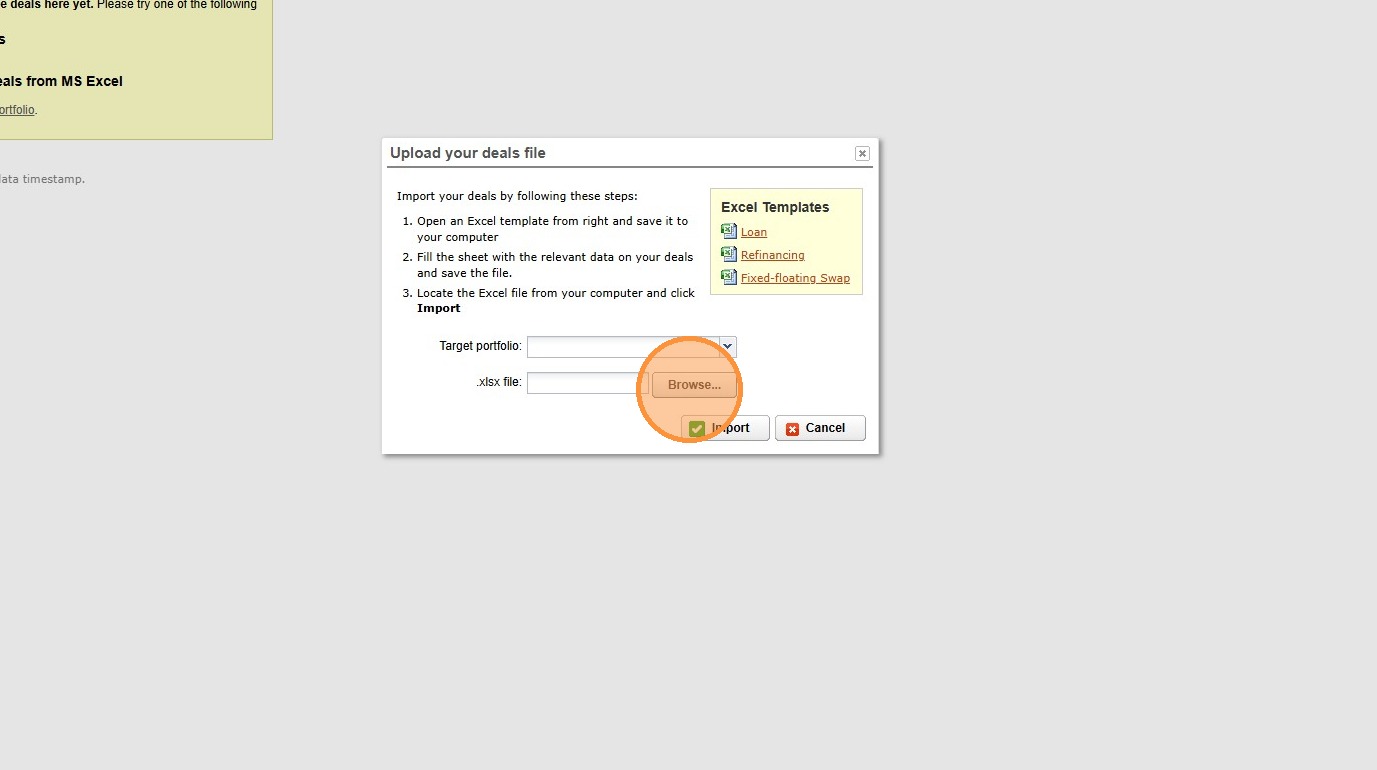
10. Upload the Validated File to Your Target Portfolio
Browse for your completed and validated import file, then click "Import" to sync the transaction data into your target TreasuryView Debt Portfolio.
> Why this step bridges the gap: The import process transfers your validated spreadsheet data directly into TreasuryView's live deal register — replacing static Excel models with a real-time, automatically updating portfolio record. From this point, all Cash Flow projections, interest accruals, and Debt Portfolio Analytics are calculated dynamically by TreasuryView's valuation engine.
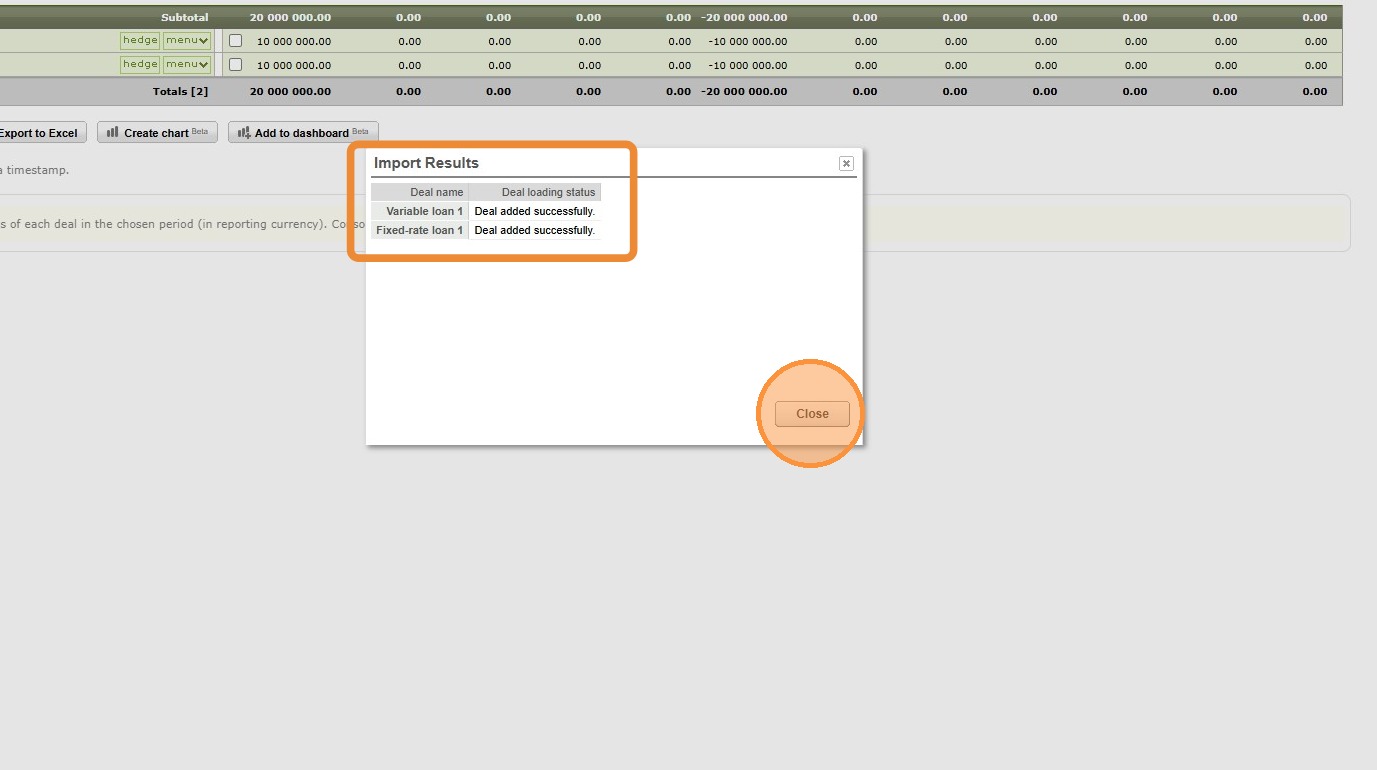
11. Verify Import Results
Confirm a successful migration by checking for the "Deal added successfully" status against each imported entry.
> System logic: If the import is interrupted, TreasuryView generates an immediate error log identifying the specific rows and fields causing the validation failure. Use this log to quickly rectify formatting issues or missing mandatory data, then re-run the import to achieve a clean, validated Debt Portfolio record.
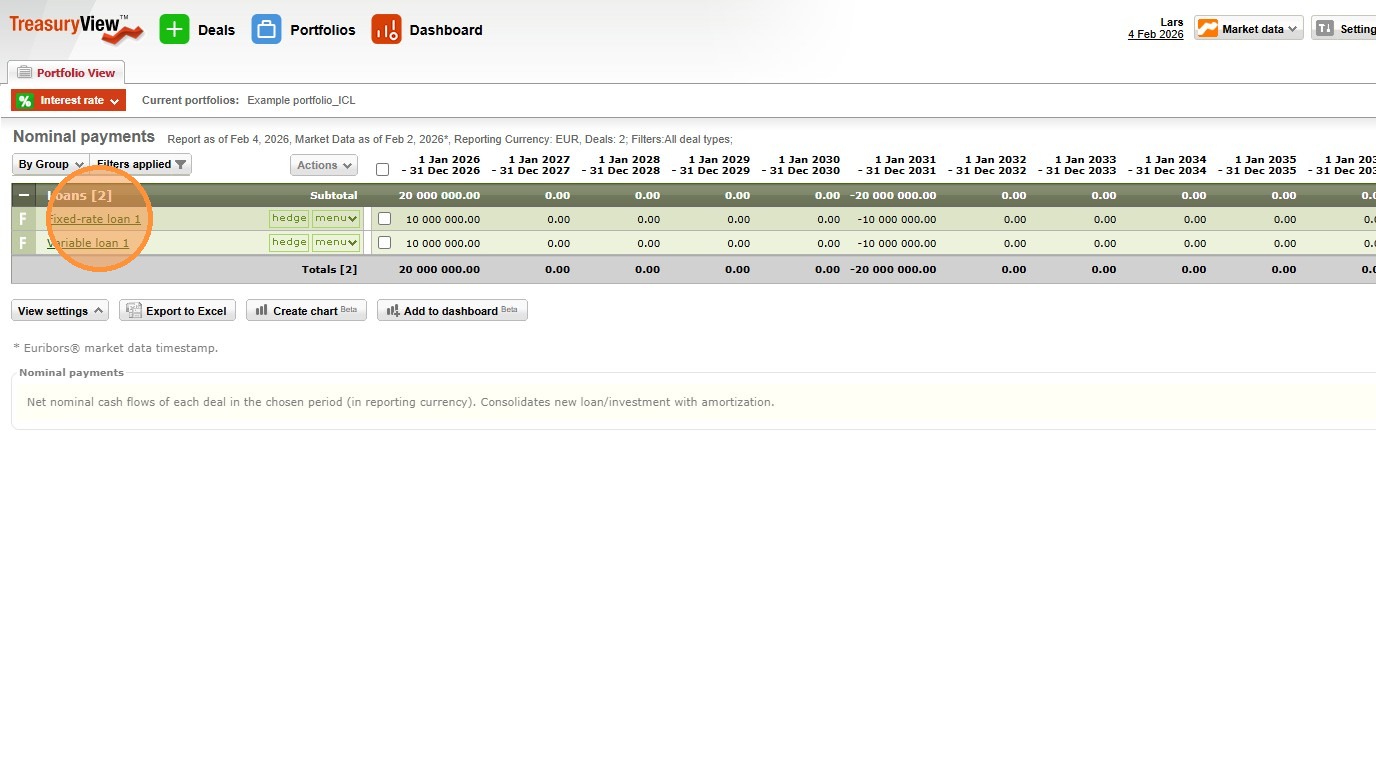
12. Refine Individual Deal Parameters via the User Interface
If post-import adjustments are needed, open the relevant deal within your Portfolio View and modify specific parameters or settings directly in the UI.
> Why refine after import? While the spreadsheet import handles bulk data migration efficiently, deal-specific configurations — such as bespoke amortisation schedules, Refinancing Date settings, or NPV calculation preferences — are best managed through the full deal entry UI, which provides access to all advanced instrument parameters.
Tip: Key Concepts Referenced in This Walkthrough
- UI Template — Pre-filled deal entry interface with built-in validation, drop-down menus, and automatic Cash Flow calculation
- Spreadsheet Import Template — System-provided Excel file pre-configured for bulk deal migration into TreasuryView
- Nominal — The Principal amount; the base for all Cash Flow, interest, and amortisation calculations
- Counterparty — The lending institution or derivative counterparty for the transaction
- Value Date — The drawdown or trade date from which Cash Flow scheduling begins
- Maturity Date — The final repayment or expiry date of the instrument
- "Deal added successfully" — The system confirmation status confirming a clean, validated import record
13. Why this works
Pre-filled user-interface templates with validation and formulas reduce manual errors, ensure consistent data, and speed up deal entry. Pre-filled spreadsheet templates make bulk uploads more reliable and efficient.
14. Need Expert Assistance?
If you require a guided setup session for bulk deal migration, assistance with complex amortisation structures, or a walkthrough of TreasuryView's Debt Portfolio Analytics after your first import — feel free to schedule a session at your convenience.
